MB Star Xentry can be complex due to its reliance on specific hardware handshakes and licensing. Below is a guide to resolving the most frequent software errors encountered in 2026.
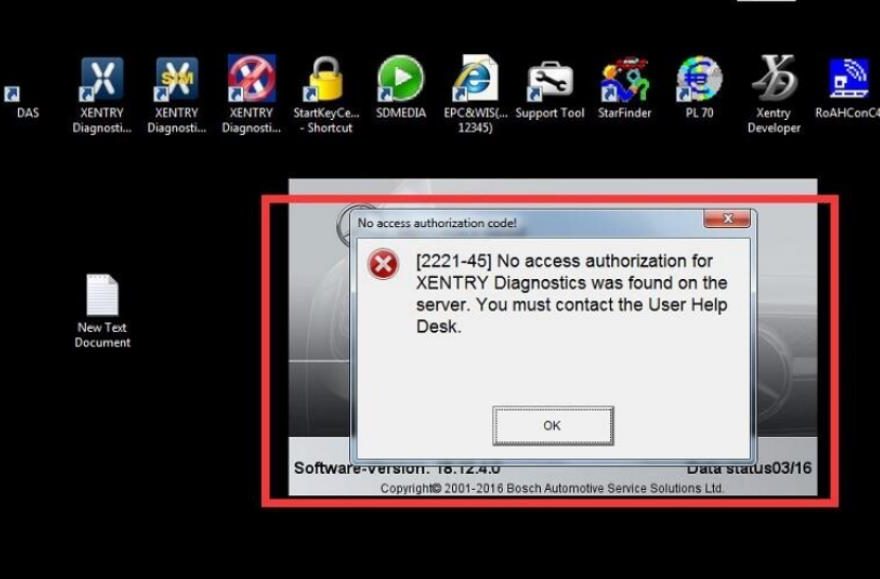
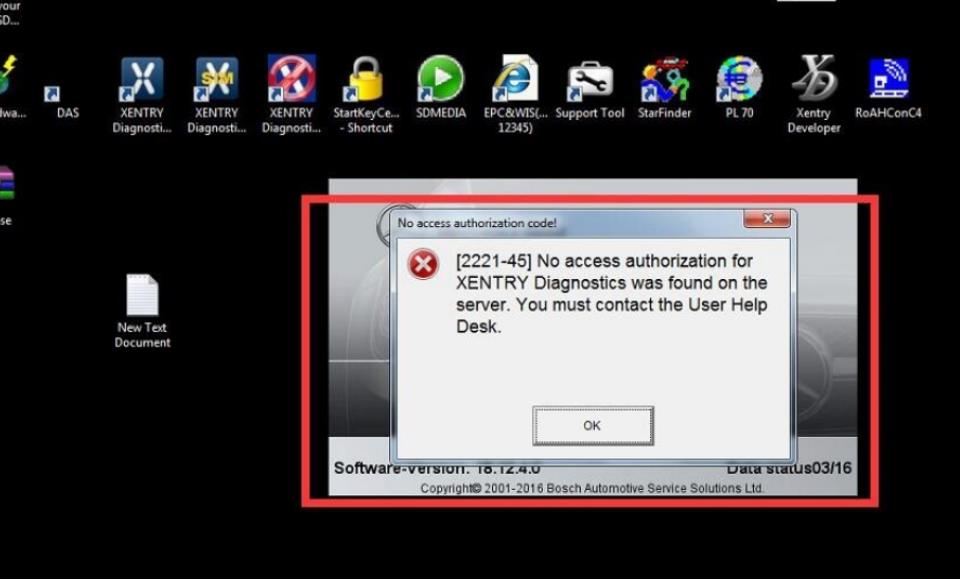
- Error: “No Access Authorization” (2221-45)[2221-45] No access authorization or XENTRY Diagnosis was found on the server. Please contact the User Help Desk.
This is a common licensing error indicating the server cannot find a valid authorization for your Xentry session.
The Cause: Often caused by a mismatched start key or a plugin conflict after a software update.
The Solution:
Open the Mercedes-Benz B2B Connect portal to verify your license status.
If using a Xentry Pass Thru or Lite kit, navigate to Account > Licenses to ensure the Hardware ID (HW-ID) matches your current device.
Pro Tip: For offline or older versions, experts recommend replacing specific plugin files in the installation folder and restarting the Xentry Diagnosis application.
- Initialization of Diagnosis Multiplexer Failed (1.2)-2.503.9901
This error typically occurs when the software cannot “see” the SD Connect C4, C5, or C6 interface.
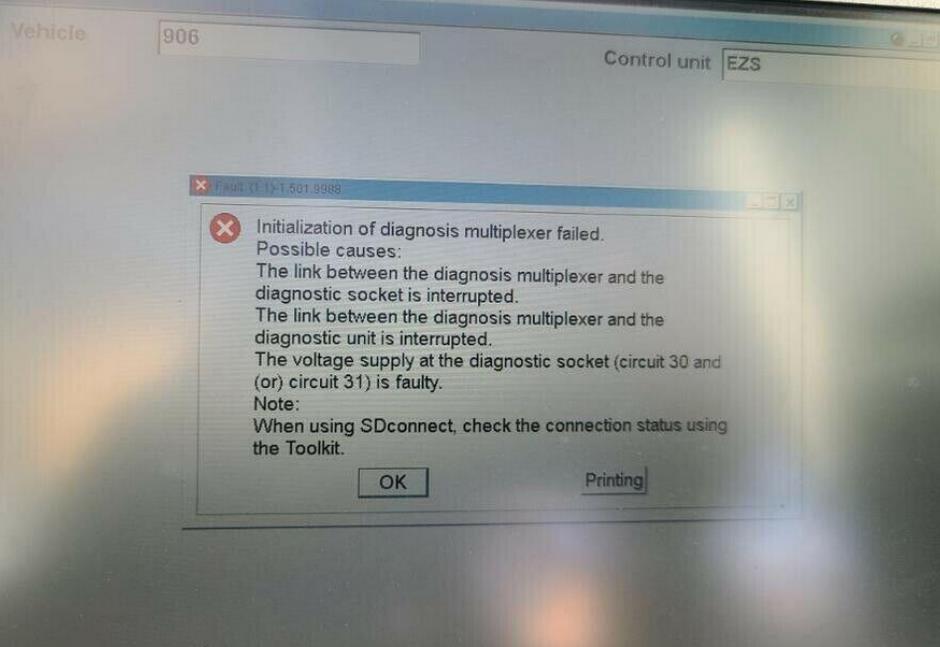
The Cause: Usually an incorrect IP address configuration or a faulty LAN/OBD connection.
The Solution:
Check IP Settings: Ensure your LAN/WLAN adapter is set to a static IP (Commonly 172.29.127.xxx).
Firmware Sync: If using a VXDIAG VCX SE Or use the VX Manager to update the VCI firmware and licenses to the latest 2026 version.
Physical Reset: Check the voltage supply at the diagnostic socket; ensure the vehicle battery is stable or connected to a battery maintainer.
- “The Data Are Faulty” or Automatic Update Failures
Users often encounter errors after the software attempts to update itself automatically.
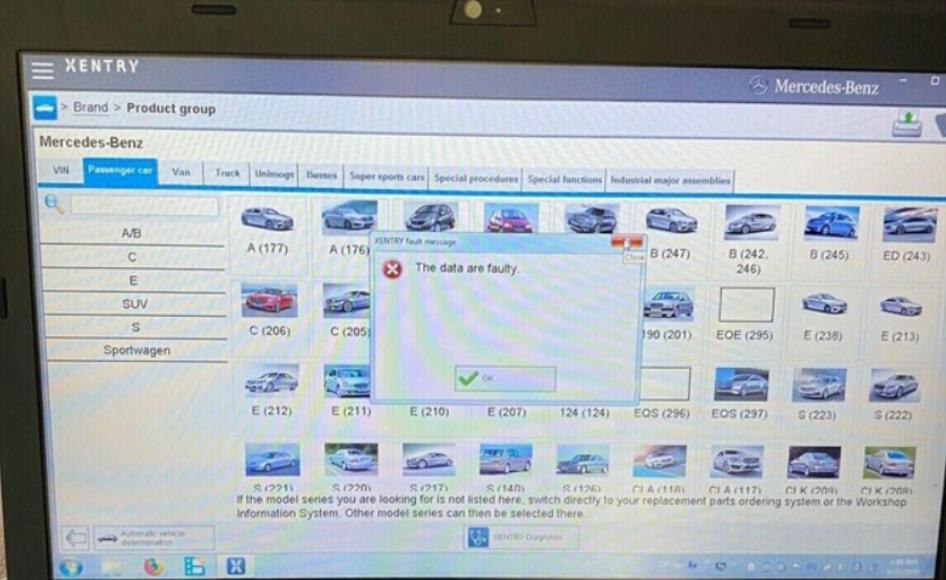
The Cause: Corrupted files during the background download process.
The Solution:
Disable Auto-Updates: Navigate to C:\Program Files\Mercedes-Benz\AddOn Center and rename AddOnCenter.exe to AddOnCenter.ex_ to prevent forced updates that break unofficial patches.
Manual Reinstall: If the data is already corrupted, use the XENTRY Update Service tab to re-download the latest release manually.
- “No Valid DAS License” (Fault 30.3)
This affects the older DAS (Diagnosis Assistance System) module within Xentry.
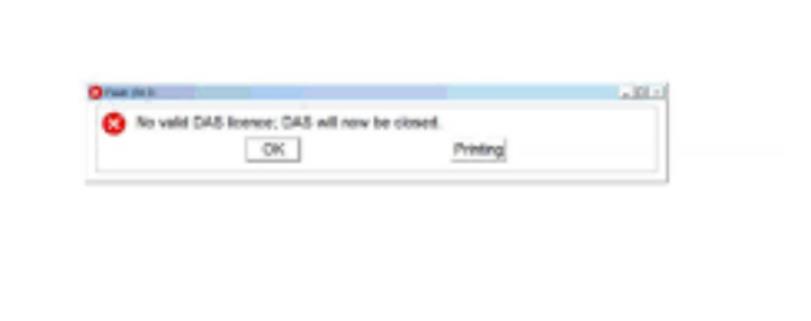
The Solution: Run the StartKeyCenter tool as an Administrator. Re-enter your Hardware ID and App ID to generate a new key. If the error persists, check the bin folder in the DAS installation path for corrupted configuration files.
Summary Checklist for 2026 Stability
Antivirus: Always disable or whitelist Xentry folders; antivirus often flags necessary diagnostic files as “false positives”.
Windows Setup: Ensure User Account Control (UAC) is disabled and you are logged in as an Administrator.
Advanced Coding: For tasks beyond basic diagnostics (like SCN coding), remember that Xentry requires an Online Account; for offline work, you may need DTS Monaco or Vediamo.
Frequently Asked Questions – MB Star Xentry Troubleshooting
1. What does Xentry error 2221-45 “No Access Authorization” mean?
Error 2221-45 means that Xentry cannot find a valid license authorization on the server. It is usually caused by an expired StartKey, incorrect Hardware ID (HW-ID), or licensing conflict after a software update.
2. How do I fix Xentry “Initialization of Diagnosis Multiplexer Failed”?
This error typically occurs when Xentry cannot detect the SD Connect C4/C5/C6 device.
To fix it:
-
Set your LAN adapter to static IP (172.29.127.xxx)
-
Update VCI firmware using VX Manager
-
Ensure stable vehicle battery voltage
-
Check OBD and LAN cable connections
3. Why does Xentry show “The Data Are Faulty” after an update?
This usually happens when automatic updates corrupt important files. Disabling AddOnCenter automatic updates and reinstalling the latest stable version manually can resolve the issue.
4. How do I solve “No Valid DAS License” (Fault 30.3)?
Run StartKeyCenter as Administrator and generate a new DAS license using your Hardware ID and App ID. If the error persists, check for corrupted configuration files in the DAS installation folder.
5. Can I use Xentry for SCN coding offline?
No. SCN coding requires an official online Mercedes-Benz account. For advanced offline programming, tools like DTS Monaco or Vediamo are required.
6. Why does antivirus cause Xentry errors?
Some antivirus programs mistakenly block Xentry diagnostic files as false positives. It is recommended to disable antivirus or whitelist the Xentry installation directory.