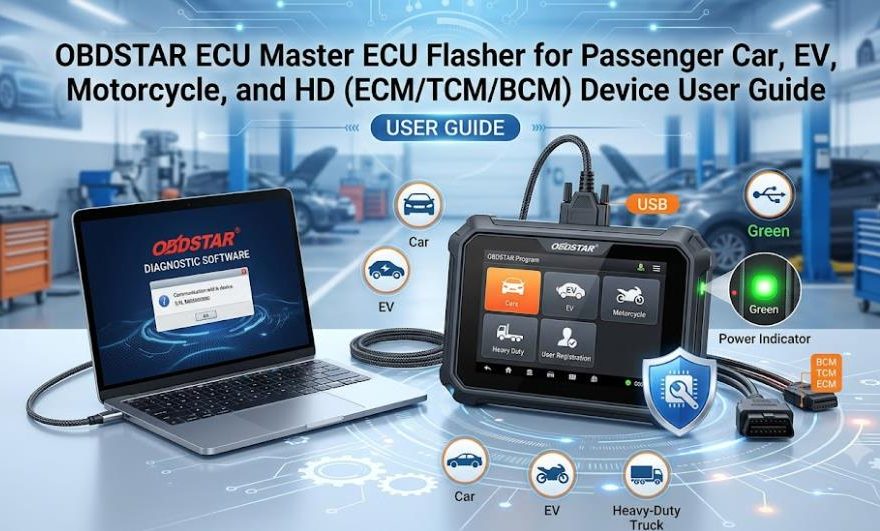
💡 Looking for the Ultimate All-in-One Flasher? Keep your workshop ahead of the competition. The OBDSTAR ECU Master delivers dealer-level ECM, TCM, and BCM cloning with daily updates. 👉 Get Your Genuine OBDSTAR ECU Master Kit Here with Fast Global Shipping!
Before using the intelligent diagnostic tool, please ensure that the device is connected to a DC power source.
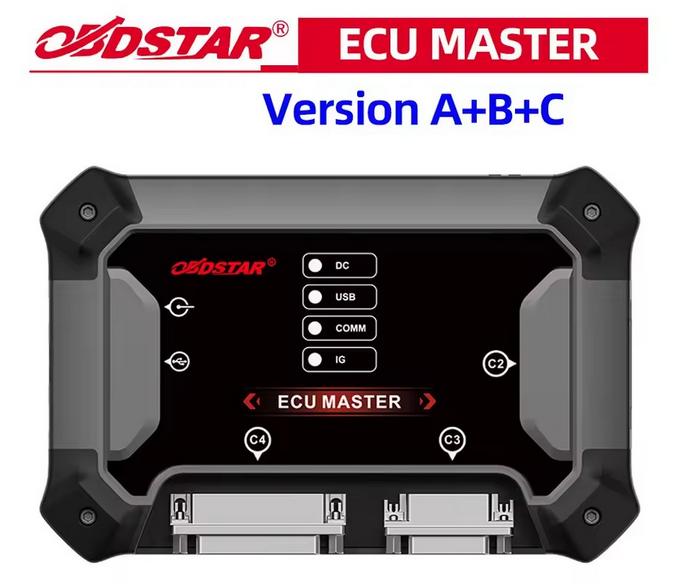
Power On
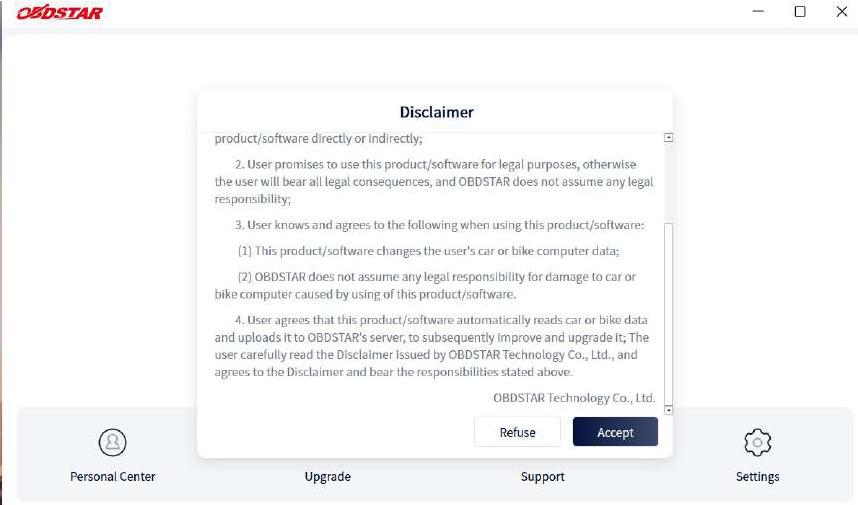
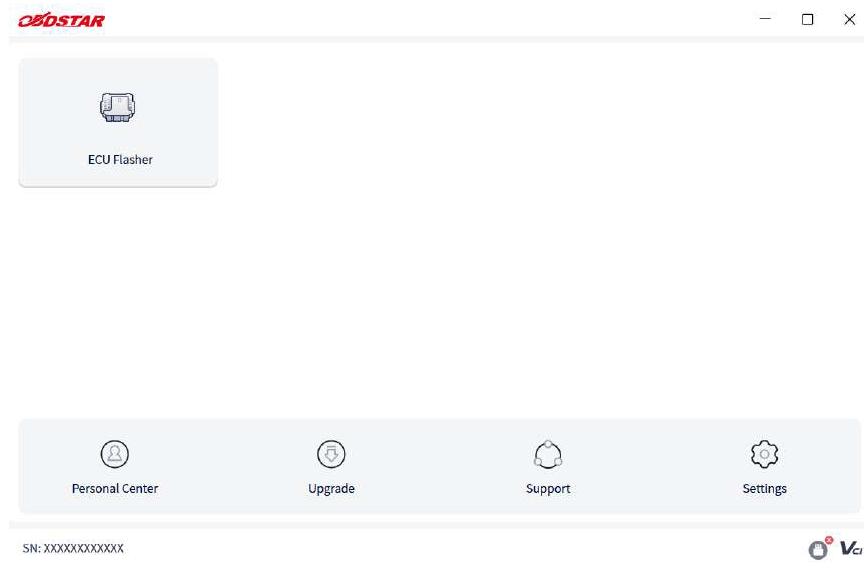
The power indicator lights up when the intelligent diagnostic tool is connected to a power source, indicating that the device is powered on. Open the OBDSTAR diagnostic software on your PC. The system will automatically display the Disclaimer window. Swipe the screen to read the Disclaimer in full. Once completed, tap [Accept] to proceed—the system will then display the OBDSTAR Program menu. (Tap [Refuse] to exit the software.)
OBDSTAR Program
Users can select and run different programs from the OBDSTAR Program menu. The table below provides a brief description of each OBDSTAR program. Please tap to select the program you wish to run.
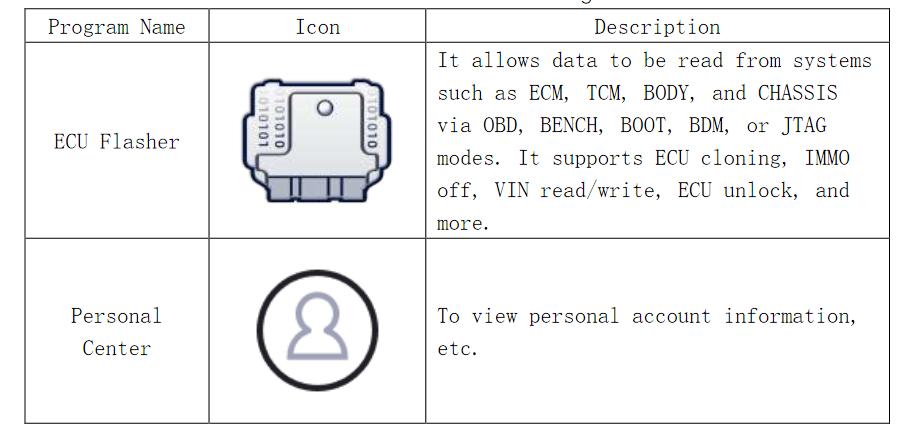
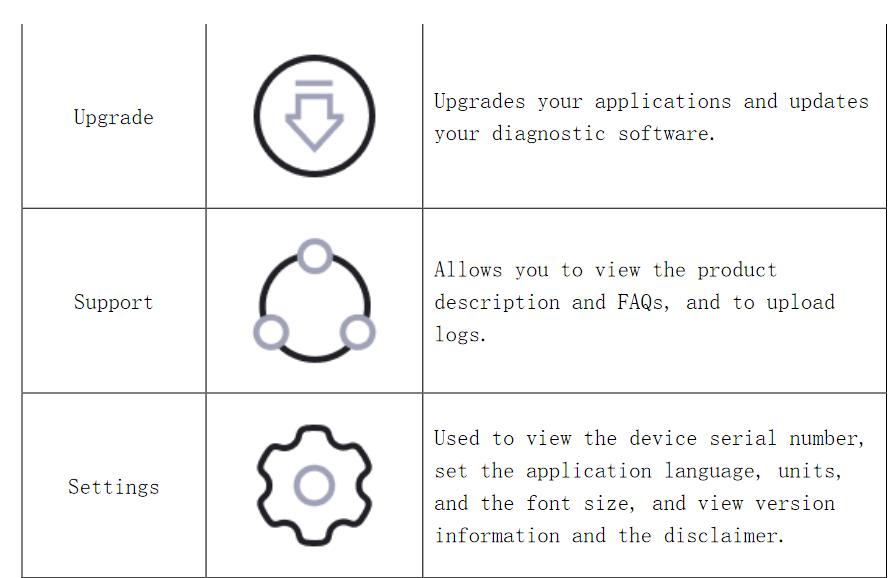
Connecting the Device and Software
The diagnostic software requires a USB connection to establish communication between the device and the PC for data transmission.
USB Connection
When the device is powered on, the power indicator lights up, indicating that it is active. Connect the diagnostic tool via the USB port. Once the connection is established, the interface will display the device’s serial number (SN).
Power Off
All vehicle communications must be terminated before switching off the diagnostic tool. Forced shutdown while communicating may cause problems with some vehicles’ ECM, so please exit the diagnostic application before shutting down.
To power off the device:
-
Unplug the power supply.
User Registration
Procedure:
Clicking the [Personal Center] icon displays the login screen.
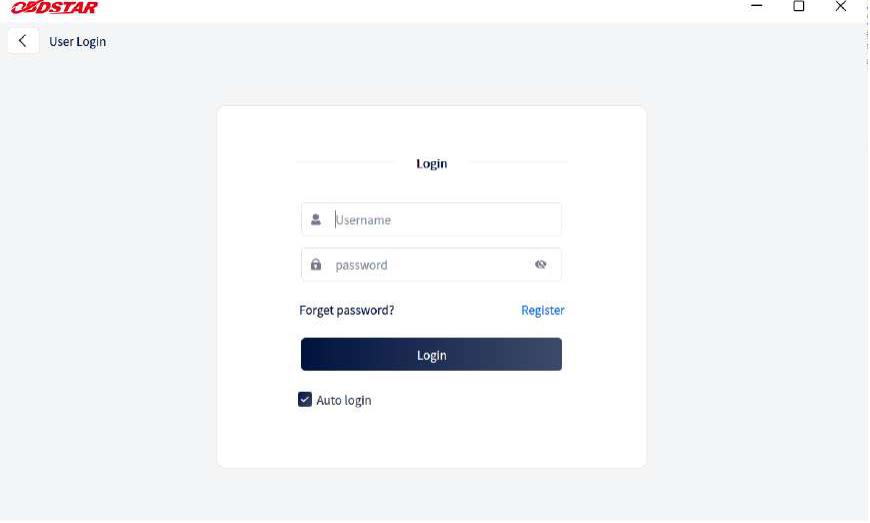
Click the [Register] button in the lower right corner and proceed to the user registration interface.
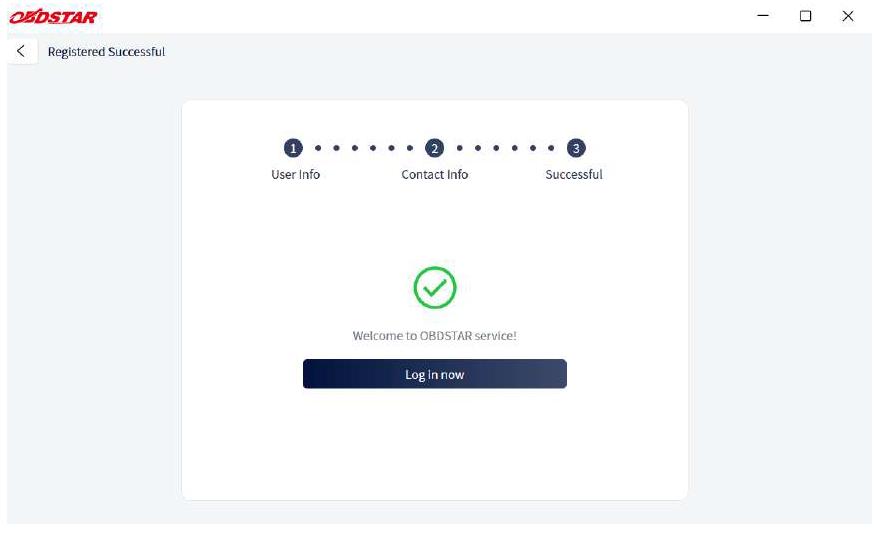
Fill in the required registration information. Once completed, you’ll see a success message. Click [Log in now] to continue.
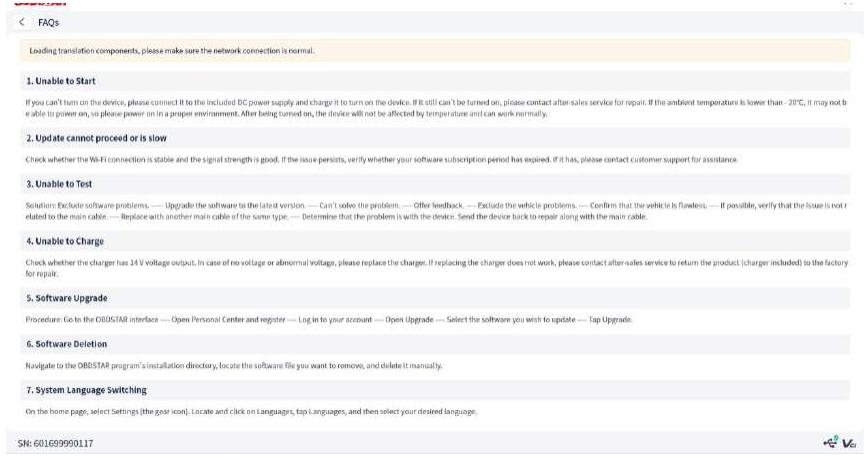
For first-time use, a download prompt will appear after clicking [FAQs] on the Support main page. Download the FAQ to view its contents.
Languages
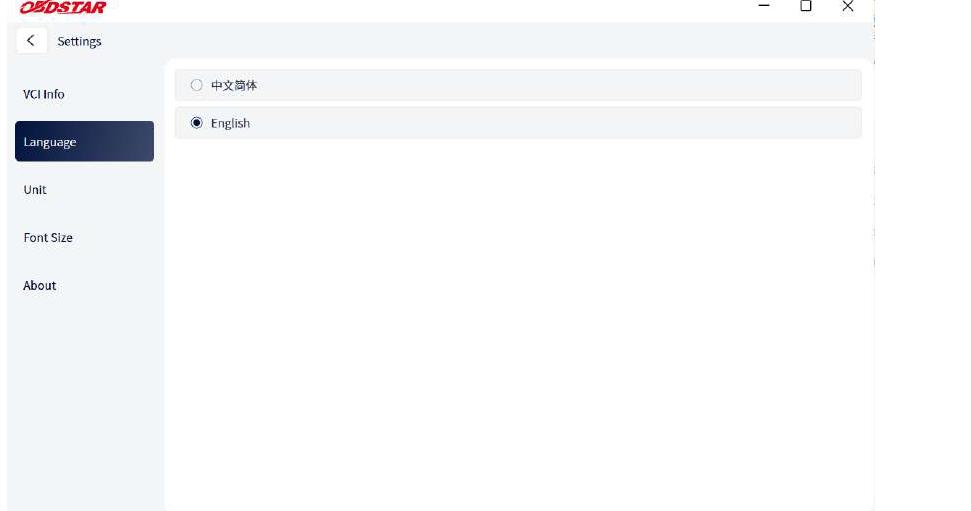
Click [Language] on the Settings screen to view the language selection menu (see illustration below). Choose from the languages supported by the device.
🌟 Why Buy From OBD2.LTD?
-
100% Genuine Guarantee: Direct factory-authorized dealer.
-
Free Tech Support: Full lifetime professional technician back-up.
-
Secure Financing: Flexible payment plans available at checkout.
📦 Ready to upgrade your shop? Buy OBDSTAR ECU Master Today & Save!