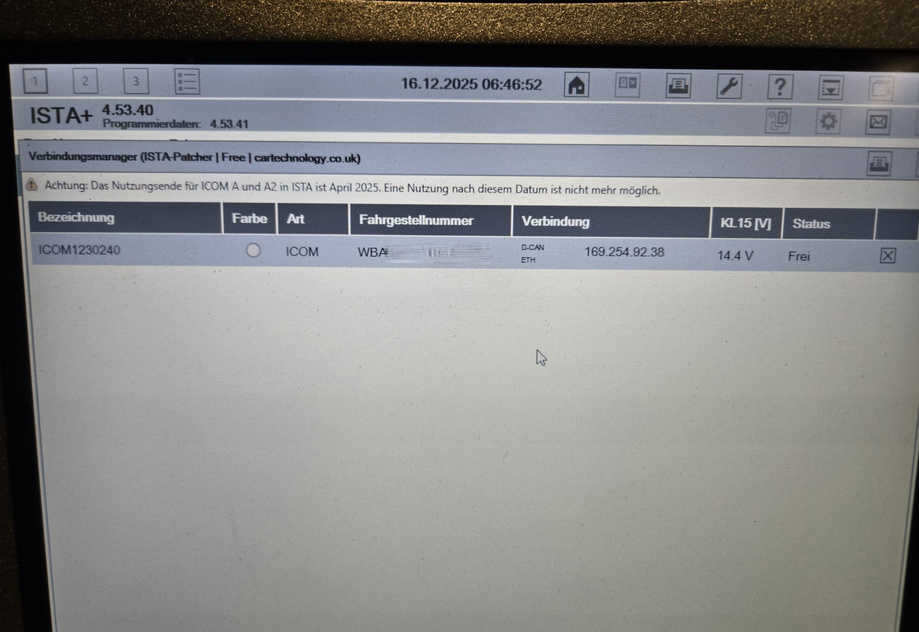
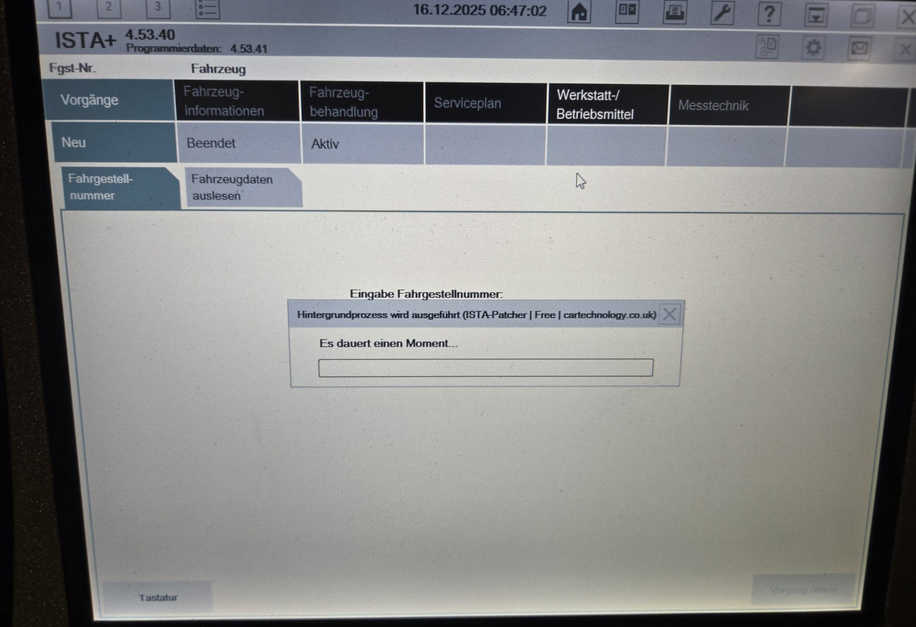
One of our customer have problem with our icom software can not read data from his car:
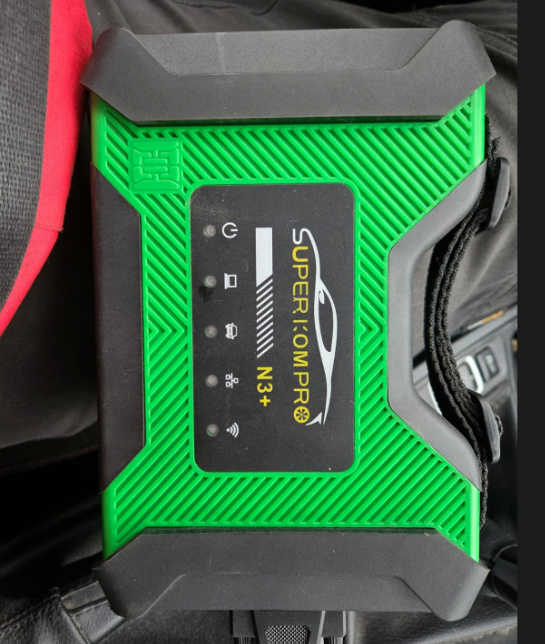
Hello i have still a minor Issue with the Software because it couldn’t read out the data from the car. The Program could find my ICOM N3+ 1107 but it couldn’t read any data from the car.
Solution:
Pls try update the icom hard ware
Custom reply: I made an update on the Icom now it works
ICOM Firmware Update Guide
This guide details the procedure for updating the firmware on ICOM diagnostic devices using the ICOM Manager web interface.
Accessing the ICOM Manager
- Locate ICOM IP Address: Use diagnostic software such as IToolRadar to find the ICOM device’s IP address (e.g., 169.254.92.38).
- Open Web Browser: Launch a web browser (e.g., Internet Explorer) and navigate to the ICOM’s IP address, typically including a port number (e.g., http://169.254.92.38:60080/).
- Login: Enter the required credentials. The username is usually root, and a common password is NZY1150263. Acknowledge any security warnings regarding the connection.
Navigating Firmware Update
- Access Update Section: Once logged into the ICOM Manager interface, select the “Update Firmware” option from the menu. This screen displays current firmware versions (Package, System, Application) and provides update controls.
Updating System and Application Firmware
- Update System Image (Boot Image):
Set “Image type” to SYSTEM.
Click “Browse…” and select the System firmware file (e.g., ICOM-BootImage-01-23-01.bin).
Click “Open”, then click “Send the file”. The browser may appear unresponsive during transfer.
On the next screen, click “Yes” to write the image to the flash memory.
- Update Application Image:
After the System update, return to the firmware update screen (you might need to click “Update Firmware” again).
Set “Image type” to APPLICATION.
Click “Browse…” and select the Application firmware file (e.g., ICOM-ApplicationImage-01-37-00.bin).
Click “Open”, then click “Send the file”. Acknowledge any warnings about image type mismatch by clicking “Yes”.
The browser may again appear unresponsive during this transfer.
Finalizing the Update
- Reboot ICOM: Once both System and Application updates are complete, click the “reboot” option to restart the ICOM device. A message indicating the system is shutting down will appear.
The ICOM will restart, completing the firmware update process. Close the web browser afterwards.