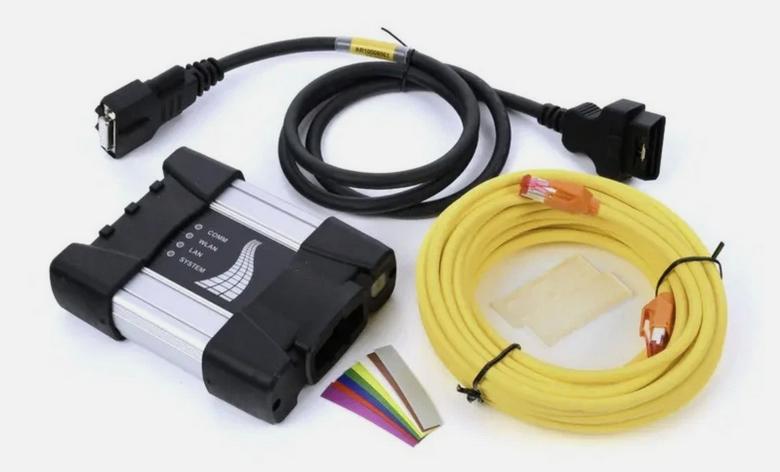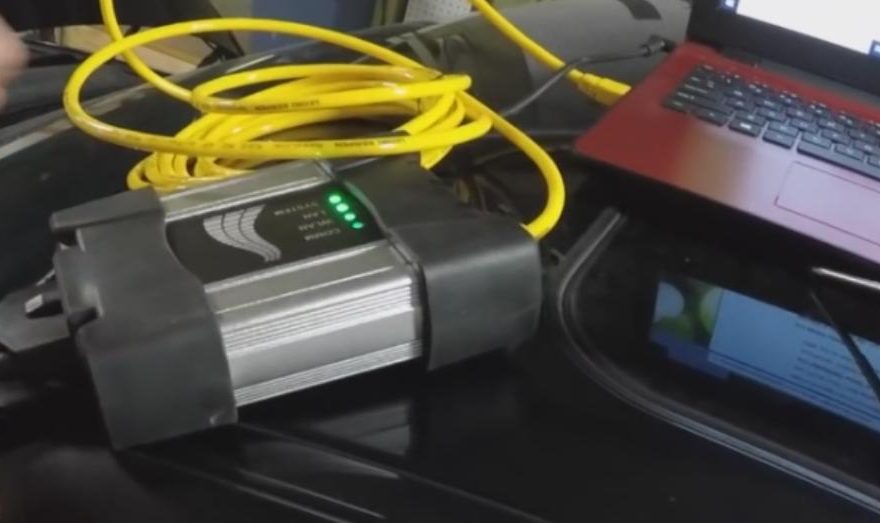
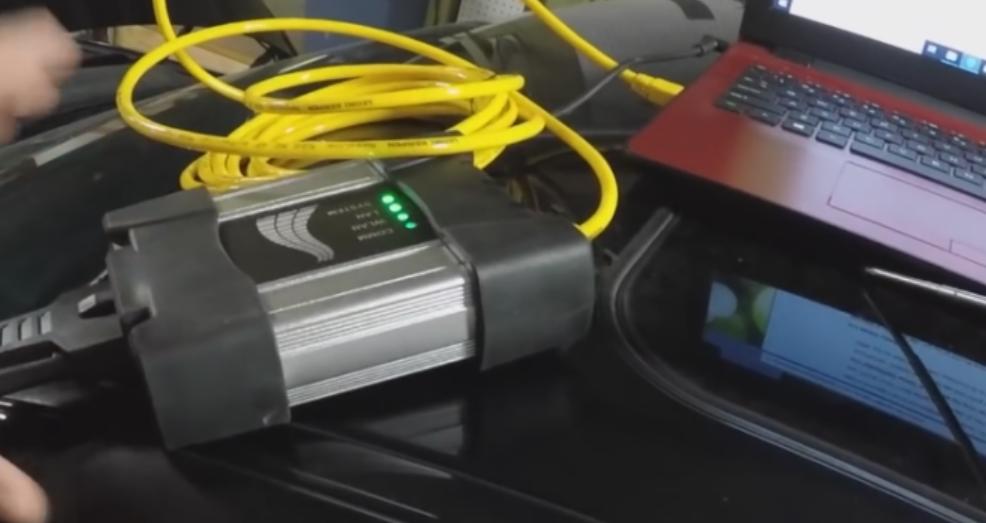
When ISTA combined with an ICOM interface fails to detect the ignition (often throwing a “Is ignition switched on or PAD active?” warning or showing 0.0V for terminal 15), the issue typically stems from specific software misconfigurations, faulty clone hardware, or network communication blocks.
1. Verify Your ISTA Connection Settings
The most common oversight is that ISTA is looking for the wrong type of interface, which breaks the voltage and ignition sensing protocols.
Open ISTA and click the Administration (wrench) icon.Navigate to the Vehicle Interface tab. ensure “Dealer organisation ICOM / ENET local area network” is explicitly selected.
If you are bypassing the ICOM to test with a standard K+DCAN cable instead, this setting must be changed to “Ediabas default settings
2. Network and DHCP Server Configuration
An ICOM relies heavily on a clean network connection to send voltage signals back to the PC laptop.
Try a Software DHCP Server: Instead of relying on the ICOM’s volatile internal DHCP or Windows’ slow automatic private IP assignment, many advanced users prefer using a lightweight application like TFTPD64. You can configure a static IP on your laptop and let TFTPD64 assign the immediate next sequential IP to the ICOM. This keeps the communication line independent and ultra-stable.
3. Check Windows Firewall:
Windows Defender or external anti-virus programs frequently intercept the specific UDP/TCP ports that ISTA uses to monitor vehicle voltage. Temporarily disable your Real-Time Protection and check your firewall settings to see if network traffic to the device is being blocked
4. Outdated ICOM Firmware
If your copy of ISTA+ is relatively new but your ICOM has older firmware, the software’s upgraded diagnostic protocols won’t register the ignition correctly
You can update the firmware safely via the ICOM’s built-in browser interface.
Boot up the ICOM, connect it to your laptop via Ethernet, and type its IP address followed by port
Need a BMW ICOM Setup for ISTA Diagnostics?
If your current ICOM repeatedly shows communication, firmware, or Terminal 15 detection problems, first confirm the network settings, vehicle voltage, and ICOM firmware compatibility.
For workshops that need a BMW-compatible diagnostic interface for ISTA, OBD2.LTD offers several ICOM configurations:
BMW ICOM Next Diagnostic & Programming Tool
The BMW ICOM Next / ICOM A3 is available as hardware only or bundled with Engineers Software, SSD/HDD, or a prepared laptop configuration.
View BMW ICOM Next:
https://www.obd2.ltd/goods-11-BMW-ICOM-Next-A3-Diagnostic-Programmer-Tool.html
This is the better option if you need both the diagnostic interface and an ISTA-compatible software setup.
Already Have an ICOM? Add the Software Package
If you already own a compatible ICOM Next, ICOM A2, or ICOM A3 interface, you can choose the standalone ICOM Engineers Software HDD/SSD package instead.
View BMW ICOM Engineers Software:
https://www.obd2.ltd/goods-10-BMW-ICOM-Engineers-Software.html
The current product page lists HDD/SSD software configurations for ICOM Next, A2, and A3, with activation required for the supplied software environment.
Before ordering: confirm your ICOM model, laptop configuration, vehicle chassis, and required diagnostic/programming functions. An ICOM hardware purchase alone does not guarantee that every ISTA programming or online function will be available.
5. The Vehicle State (Low Battery Voltage)
If the vehicle’s battery drops below ~12.2V, certain ECUs drop into a deep sleep mode or “transport mode” to preserve power, resulting in a loss of Terminal 15 response to the VCI.
Make sure you are using a clean, dedicated automotive battery maintainer/power supply (supplying a steady 13V+ and at least 20–30Amps), not a cheap trickle charger, while diagnostic scans are running.
For newer B-MWs, ensure the vehicle is explicitly in PAD Mode (Testing Analysis Diagnosis Mode) by pressing the Start/Stop button rapidly 3 times without holding the brake pedal down