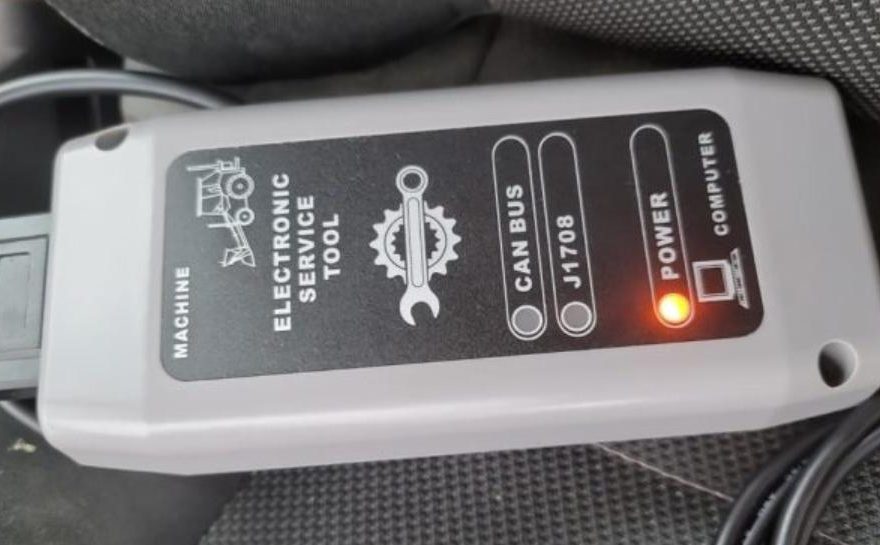
One of our customer have the communication problem with the JCB
To get JCB ServiceMaster 4 V26.09 diagnostic software communicating properly with your JCB DLA 2.0 (Data Link Adapter) interface, you need to address the Windows communication layer
The primary cause for communication dropouts or a completely undetected interface is a broken connection chain between the Windows operating system, the DLA driver, and the software’s internal hardware preferences.
Step-by-Step DLA 2.0 Communication Fix
If your software is throwing errors, freezing, or simply showing no connection, walk through these three critical layers to establish a stable diagnostic session:
Re-install or Repair the Windows DLA Driver
Installing the ServiceMaster software itself does not automatically configure the Windows communication layer for the physical adapter.
Disconnect your DLA 2.0 interface from the laptop.
Locate your standalone JCB DLA 2.0 driver setup package (usually provided alongside the software files or on your installation source).
Run the driver installation as an Administrator.
Once completed, plug the DLA 2.0 back into a USB 2.0 or USB 3.0 port directly on your laptop (avoid unpowered USB hubs). Open Windows Device Manager to ensure the adapter is listed without any yellow exclamation marks.
- Configure the RP1210 Device Chooser
- ServiceMaster 4 relies on RP1210 standards to bridge software to hardware. You must explicitly tell the program to target the DLA 2.0 framework:
- Open JCB ServiceMaster 4.
- Navigate to the Fileor Settings menu and look for Select Driver, Hardware Configuration, or the DLA Chooser
- Select DLA20R32(or the corresponding JCB DLA 2.0 API profile) from the list.
- Note:If you are using an alternative RP1210 adapter (like a Nexiq USB-Link), ensure that specific device driver profile is highlighted instead
- Power and Cable Sequencing
- The sequence in which you establish the physical connection drastically impacts machine-side communication:
- Connect the USB sideof the DLA 2.0 to your PC first.
- Connect the 9-pin Deutsch / OBDII cableto the machine’s diagnostic connector.
- Turn the vehicle ignition to the ON / RUN position(do not start the engine yet). This wakes up the machine’s ECU Network, prompting the DLA to start routing data