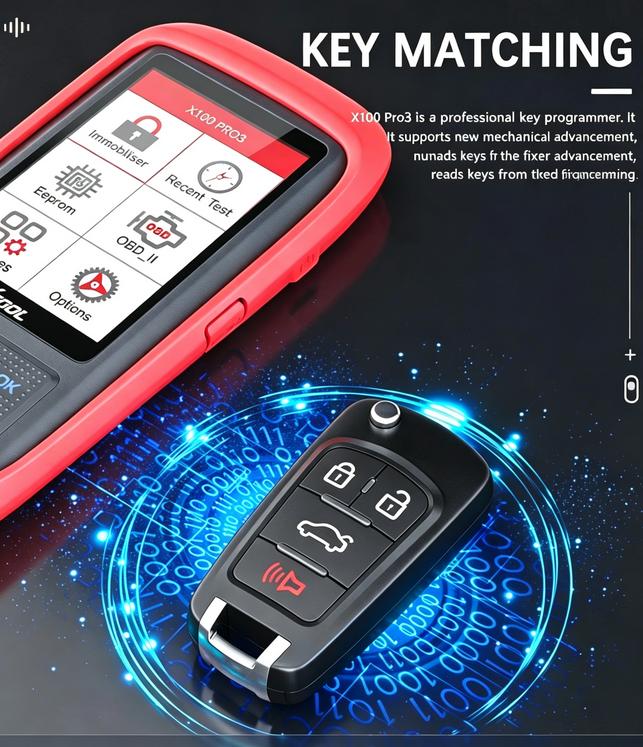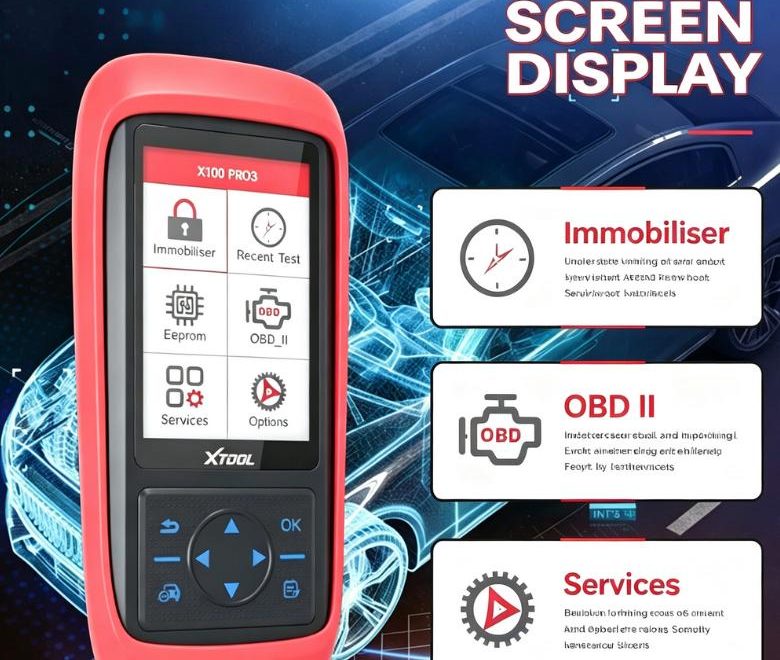
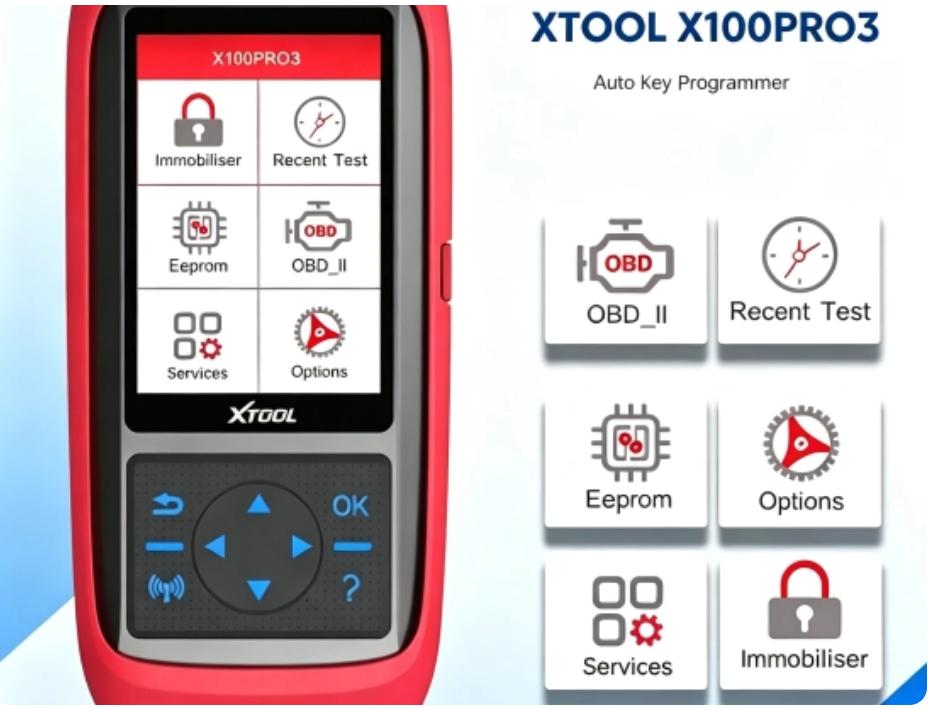
To perform a key relearn or key programming using the XTOOL X100 Pro3, you will primarily navigate through the Immobilization (IMMO) menu. The tool interfaces directly with your vehicle’s engine control unit (ECU) via the OBD2 port to disable lost keys, program replacements, or read transponder pin codes
Step-by-Step Key Relearn Process
Connect to the OBD2 Port: Plug the main DB15-to-OBD2 cable into the bottom of your X100 Pro3, and attach the 16-pin connector to your vehicle’s OBD2 port (usually located under the driver-side dashboard).
Turn Ignition On: Insert your current working key (or a newly cut key if it’s an “all keys lost” scenario) and switch the ignition to the ON position without starting the engine.
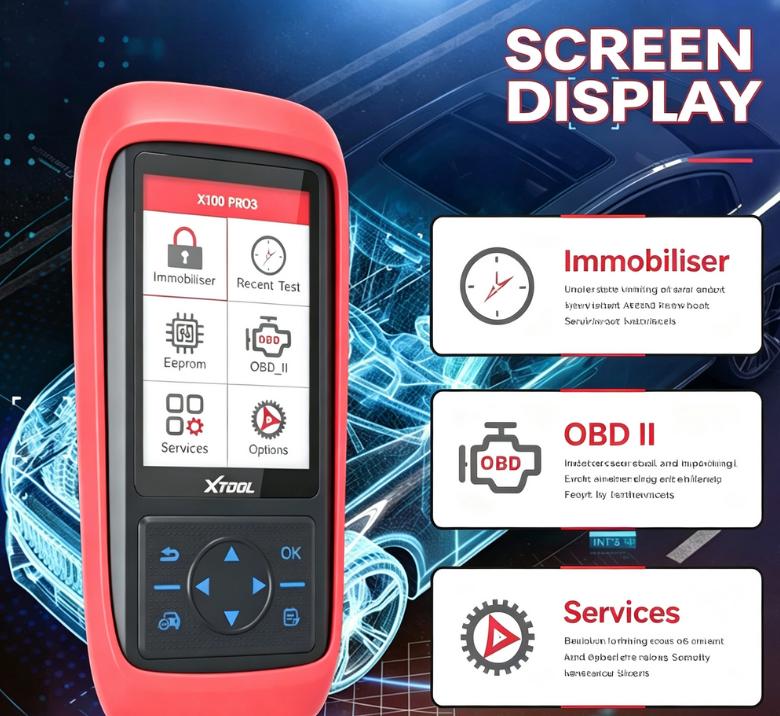
Select Immobilization: Turn on the X100 Pro3. From the main screen, select Immobilization
Choose Vehicle Brand: Navigate the menu to find your specific vehicle region (e.g., America, Europe, Asia) and choose your car’s Make, Model, and Year
Establish Communication: Select the function you need from the car-specific menu:
- Read Pin Code:Essential for many brands (like Chrysler, GM, or Nissan) to unlock the programming sequence.
- Program New Key:Prompts you to insert the new key and initializes the transponder chip.
- All Keys Lost:Clears out old key data from the car’s memory if you are starting entirely fresh
Follow On-Screen Prompts: The tool will provide specific instructions tailored to your vehicle, such as “Turn ignition off for 5 seconds” or “Insert the next key to be programmed.
Important Setup & Limitations
Pin Codes: Some vehicle makes require a distinct security code (PIN) to access key learning. The X100 Pro3 can read pin codes for many supported models, but for certain luxury or newer vehicles, you may need to source the PIN independently.
EEPROM Adapter: For older or bench-top chip programming where OBD2 learning isn’t supported, you must use the included EEPROM2 Adapter to read the chip data directly off the circuit board
Keep Updates Current: Car software databases change frequently. Connect your tool to a PC via the Type-C USB cable, log into XTOOL Tech, and download the latest IMMO software updates before attempting a relearn.